 Written by
I am leading a photography club during the winter trimester at Rosseau Lake College. The premise is simple: I issue a challenge each week and each student attempts to meet the challenge, either during one of our times together or at some other moment during the week. It’s pretty loose, and the point is to try new photographic techniques and to get better at photography. If you are interested in the challenges themselves you can find them here (with more to come): Challenge 1 | Challenge 2 | Challenge 3
I started to track student adherence to the instructions (for eventual photo printing) and it got rather arduous right away. With 14 students and only one me I decided to give something wild a try and put them in charge of their own bookkeeping. I shared one Google Sheet with all students and set the permissions so each student can edit only their own row. My thinking: We will eventually be printing and showcasing these photos at our Spring Arts Festival, so we might as well start organized and stay that way.
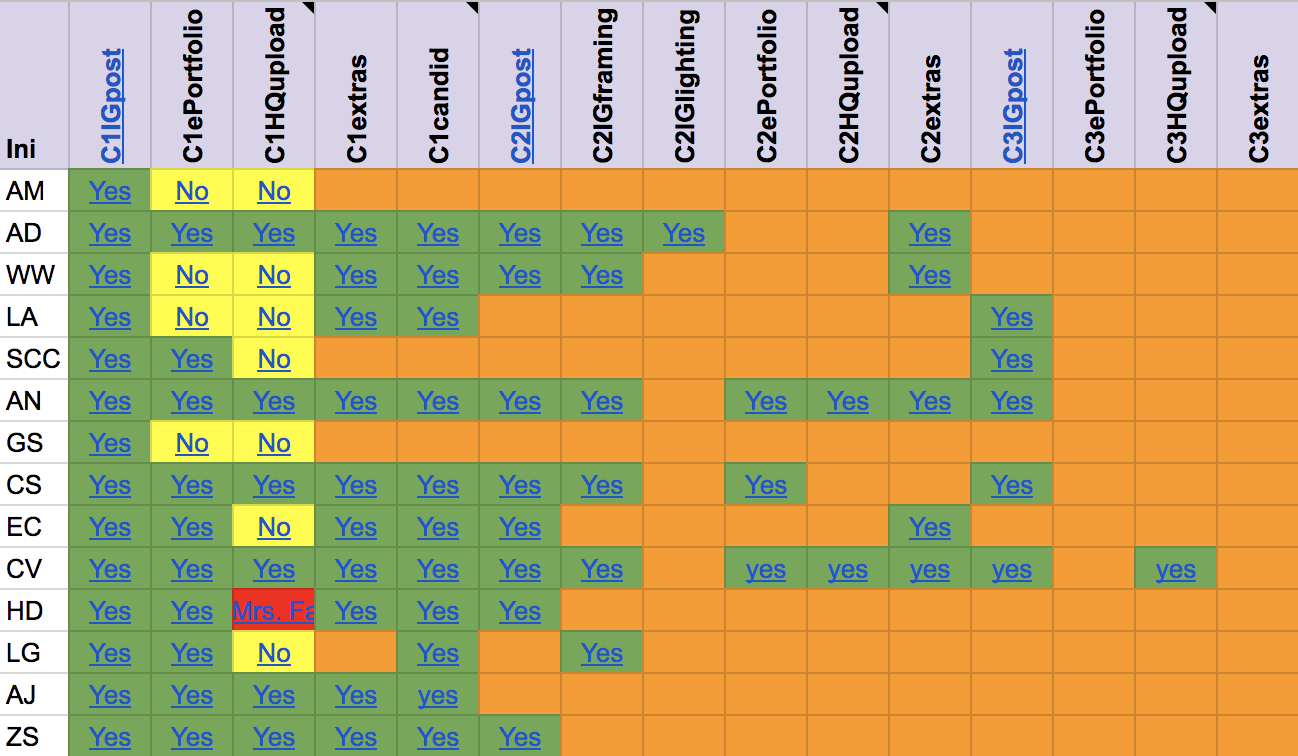 When a challenge is live, the cells under those columns show orange. If a student finishes a specific part of the challenge they type ‘Yes’ in the cell and hyperlink it to the photo they have taken. This will show as green. If I check and do not find the hyperlink to work they way I expect it to, for example if their Drive folder does not show a high quality (HQ) file for that challenge, I type ‘No.’ This will show as yellow. The student can then make the correction and retype ‘Yes’ so I know to check it again. If I type something else entirely the cell will show as red, hopefully an attention-getter!
As you can see, there are some students who are taking this very seriously, having completed nearly every photo challenge and accompanying file organization thus far. There are other students who have been slower to start for a variety of reasons. Collectively the group of students is responsible for encouraging each other along. There is absolute transparency, and why shouldn’t there be? The fruits of their photographic labours are all being posted publicly on Instagram @rlccapture. An added bonus is students learning how to use Google Sheets, also a transferrable skill. Thanks for reading!
This is an awesome use of google sheets. How did you lock it so only one student can edit each row? When I do things like this I leave it so students can edit anywhere, but then have to always give the “be nice and don’t delete someone else’s things” because that’s funny in 6th grade.
Thanks, Mary-Ellen. It helps that I have a smaller group of students. I first shared the Google Sheet as ‘view only’ with all members of the club. I then highlighted each row and added editing permissions to the student named in the row. It was a few minutes of set up and now it is smooth sailing. I have also used the “be nice” route, and I am sure they would have been nice, but mistakes happen and this is far easier on the back end. 🙂
Hi Leslie,
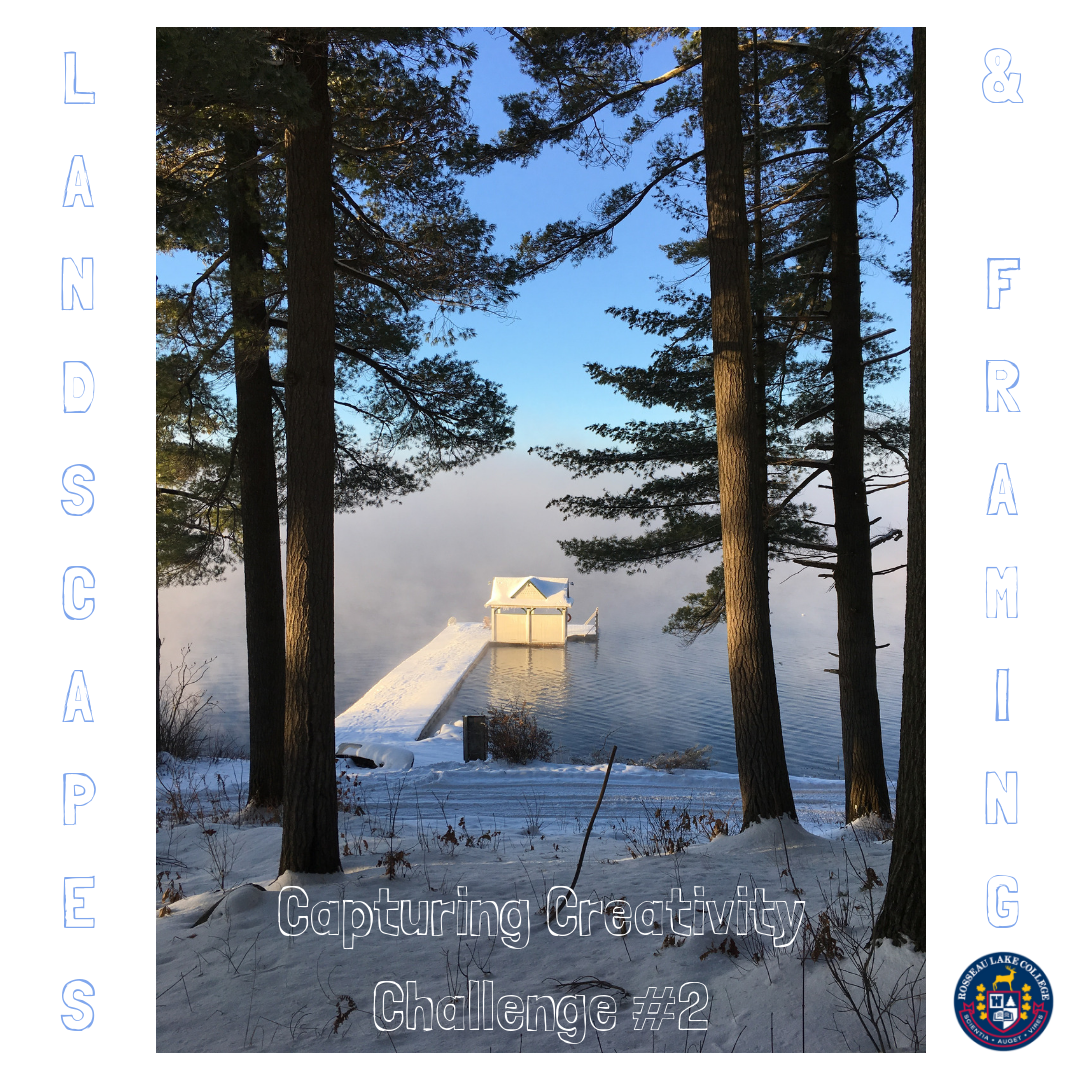
I love this! Your instructional videos are awesome. I love that you highlight deadlines:) The picture you posted for the landscape and framing challenge is lovely. Would love to see a complete list of all the challenges you are setting. We have a lot of photographers at Ridley who would love to do something like this. Thank you for sharing this project!
Wendy
This concept has so many important implications for teaching and learning. Thanks for sharing Leslie. @lmcbeth @jmedved @ddoucet